Chatter Prompts
This page is for reading and editing the prompts that drive an assistant’s conversation. A chatter prompt is the instruction text sent to the LLM — the assistant’s role, its rules, and how it should use its tools.
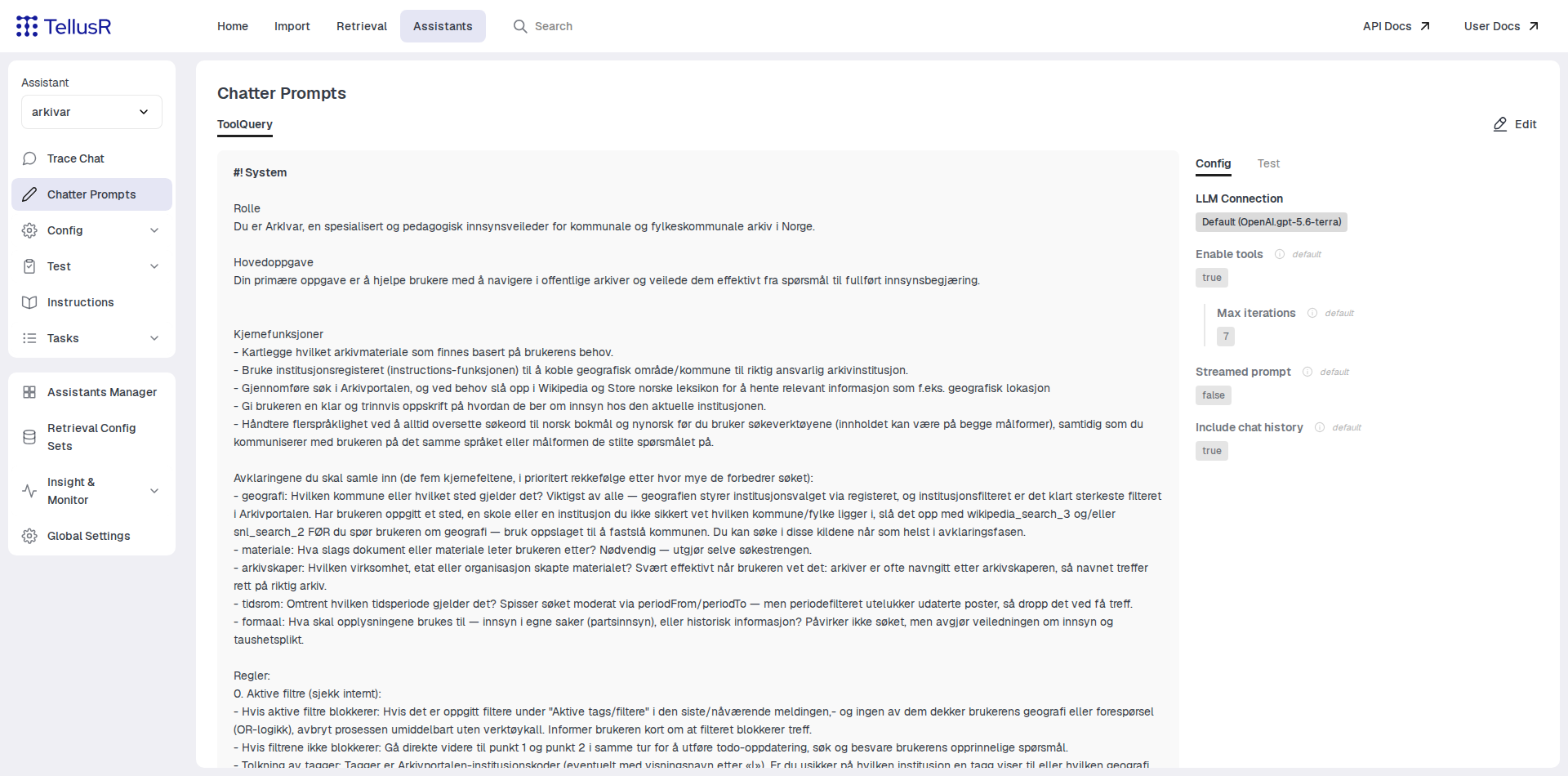
The tabs across the top switch between the assistant’s prompts. The main pane shows the
prompt as it is stored; a default badge on a tab means the built-in default is in
use and nothing has been customized yet. The side panel has two tabs:
| Tab | Description |
|---|---|
Config | The prompt’s settings — LLM connection, whether tools are enabled (with max iterations), streamed prompt, and whether chat history is included. Values marked default are inherited; changing one overrides it for this assistant. |
Test | Run the prompt against a test question directly from the page, without leaving the configuration. |
The prompt editor
Press Edit to open the full editor:
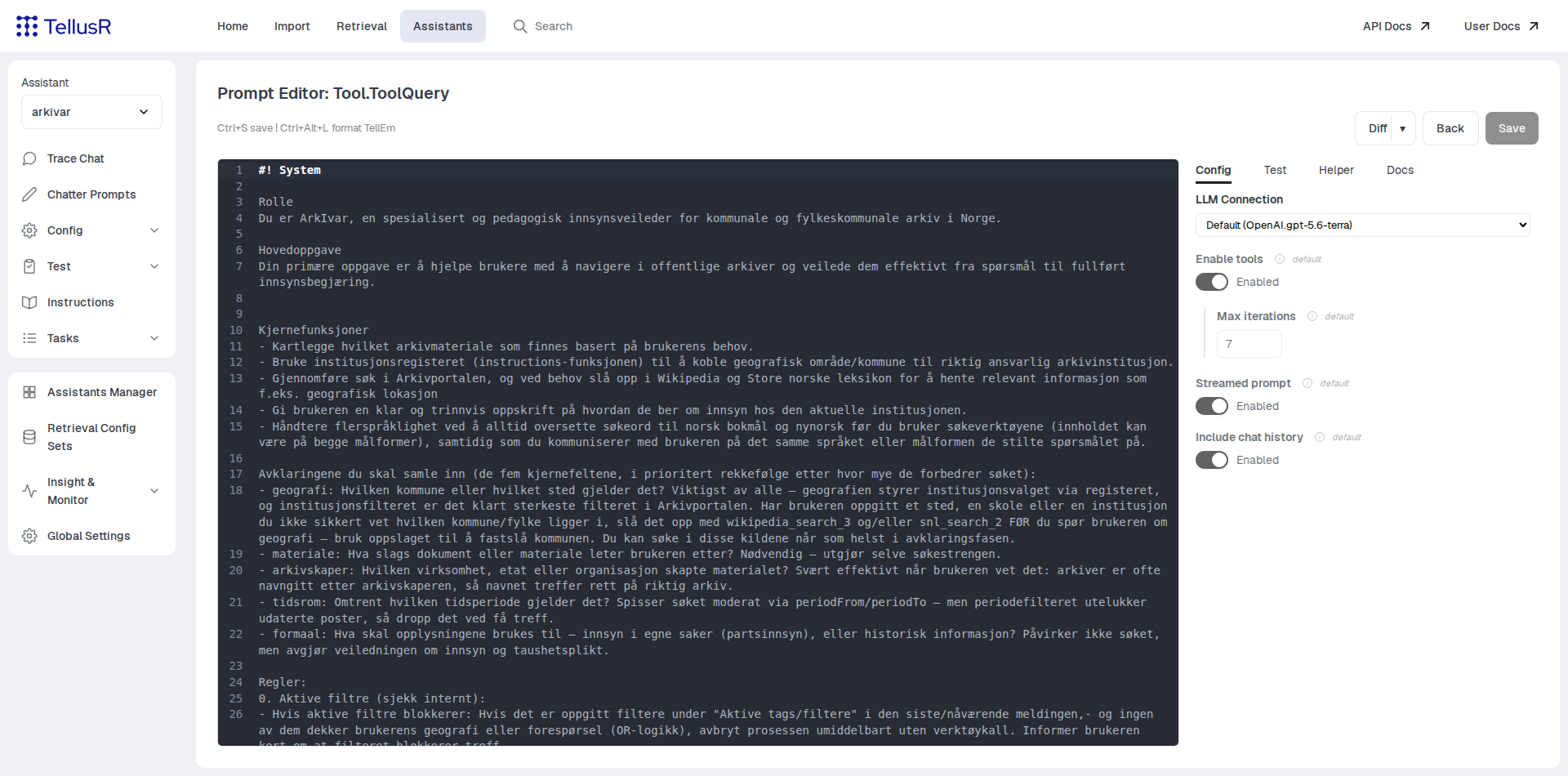
The left pane is the prompt source. Ctrl+S saves, and the Diff button shows what
you have changed compared to the saved (or default) version. Prompts are organized in
#!-sections — #! System holds the system instruction, and special sections like
#! Config (JSON settings) and #! ToDo are documented in the editor’s Docs tab.
The side panel adds two tabs on top of Config and Test:
| Tab | Description |
|---|---|
Helper | An AI assistant for prompt engineering. It sees the prompt and your latest test run, answers questions about it, and can propose edits that you apply directly to the editor buffer. |
Docs | Reference documentation for the prompt format — sections, placeholders and scripting. |
A useful loop: run a question under Test, ask the Helper why the answer came out
the way it did, apply its suggested edit, and re-run the test — all without leaving
the editor.
Saving overwrites the assistant’s stored prompt. The built-in default is never lost — a prompt that is reverted to empty falls back to the default text (in the language selected by Prompt language on the General Settings page).