Retrieval
This page is for configuring where an assistant gets its content from. A Retrieval Config Set is a named collection of datasource configurations that an assistant is bound to. Each configuration in the set connects to one backend — typically a TellusR project, but also external sources such as Wikipedia or Arkivportalen — and defines how the assistant searches it.
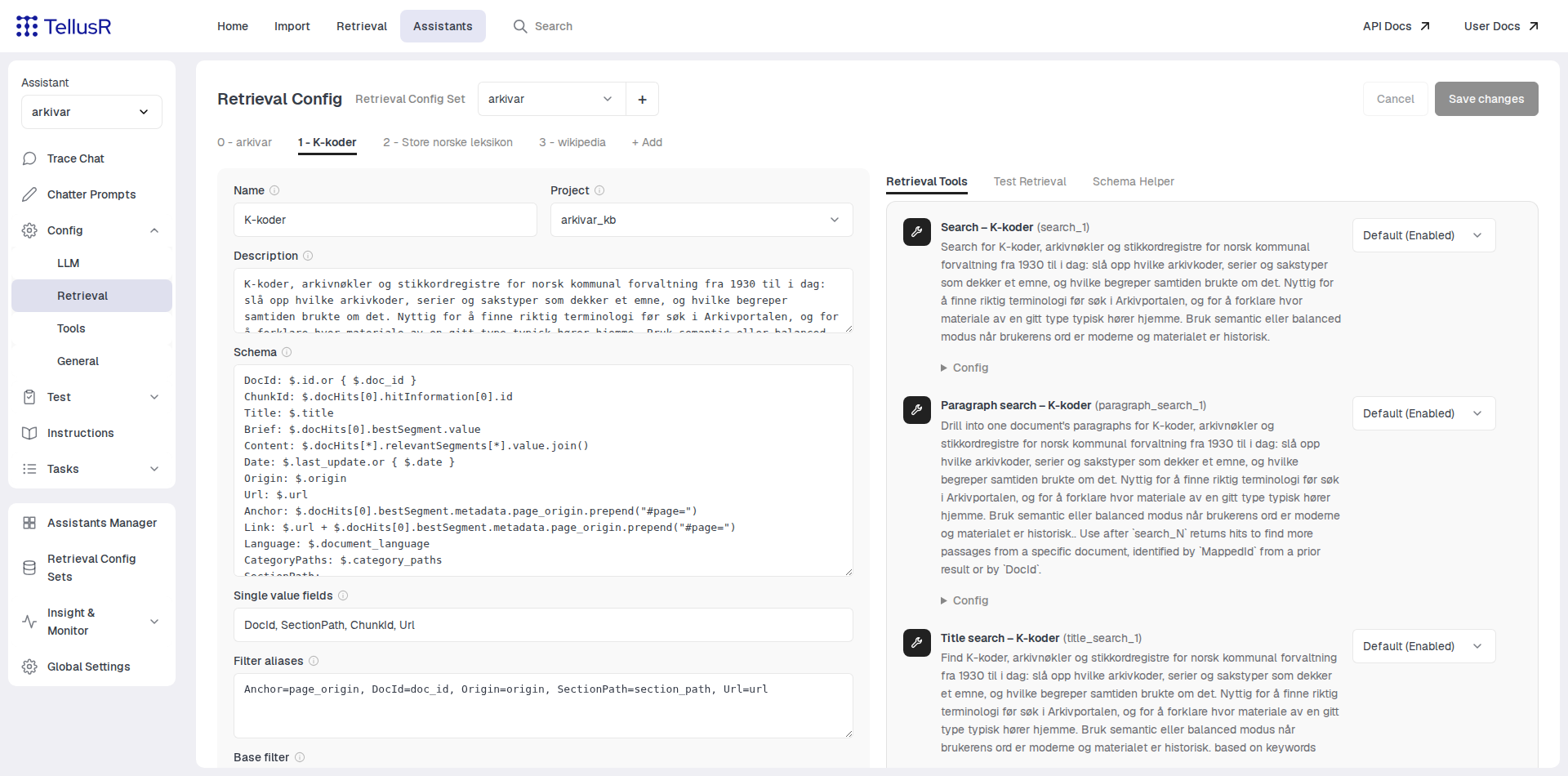
Choosing a config set
The Retrieval Config Set dropdown at the top binds a set to the current assistant. Several
assistants can share one set, so a curated retrieval setup can be reused. Press + to create
a new, empty set.
Datasources
Each datasource in the set gets its own tab. Use the + Add tab to add one; choose a
Search Backend — for example TellusR Retrieval, Wikipedia, Store norske leksikon or
Arkivportalen.
For the main case, TellusR Retrieval, the important fields are:
| Field | Description |
|---|---|
Name | Display name for this datasource, shown on the tab and in tool names. |
Description | Free text the LLM uses to decide when this datasource is relevant. Write it as if explaining to a colleague what can be found here. |
Project | The TellusR project to search. |
Rows | Number of top matching chunks to return. |
Highlight window | Number of neighbouring chunks included around each match, for context. |
Semantic weight | Balance between keyword and semantic matching, from 0.0 (keywords only) to 1.0 (meaning only). |
Schema | Maps result fields onto document fields, one Field: path line per field. |
Base Filter | A filter expression AND-ed into every search from this datasource — use it to narrow what the assistant can reach. |
Categories | One category per line as `name |
Blank fields fall back to the backend’s defaults, shown as placeholders. Less common settings
are collected under the Advanced disclosure. The other backends have shorter forms following
the same conventions — Wikipedia asks for a language edition, Arkivportalen for institutions
and description levels, and so on.
Changes are not applied until you press Save changes. Unlike most Assistants pages, the
Retrieval page buffers your edits; Save changes and Cancel in the header activate as soon
as something differs from the saved state. Structural actions — binding a set, adding or
deleting a datasource — take effect immediately and warn about unsaved edits first.
Retrieval Tools
The Retrieval Tools sub-tab lists the search functions this datasource offers to the LLM —
chunk search, title search, document read and backend-specific variants. Each function can be
enabled or disabled, and expanded for finer control: a description template for what the LLM
is told about the function, and the parameters the LLM receives.
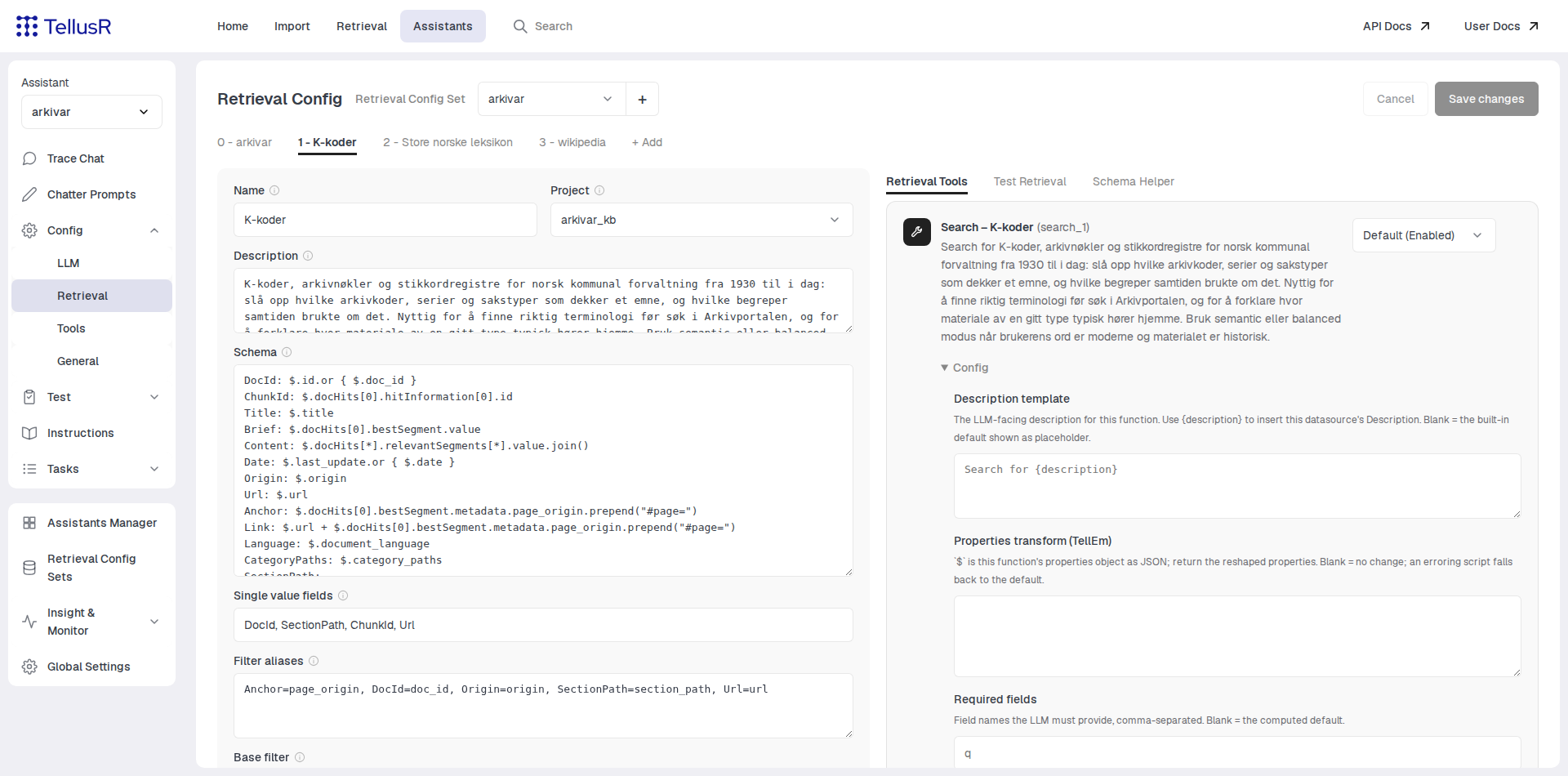
These settings are defaults for every assistant using the config set. An individual assistant can override a function on its own Tools page — the row will tell you when that is the case.
Test Retrieval
The Test Retrieval sub-tab runs a query against the datasource exactly as configured, without
involving the LLM. Enter a query, optionally a filter (e.g. author:Shakespeare) and category
selections, and inspect the returned fields per hit.
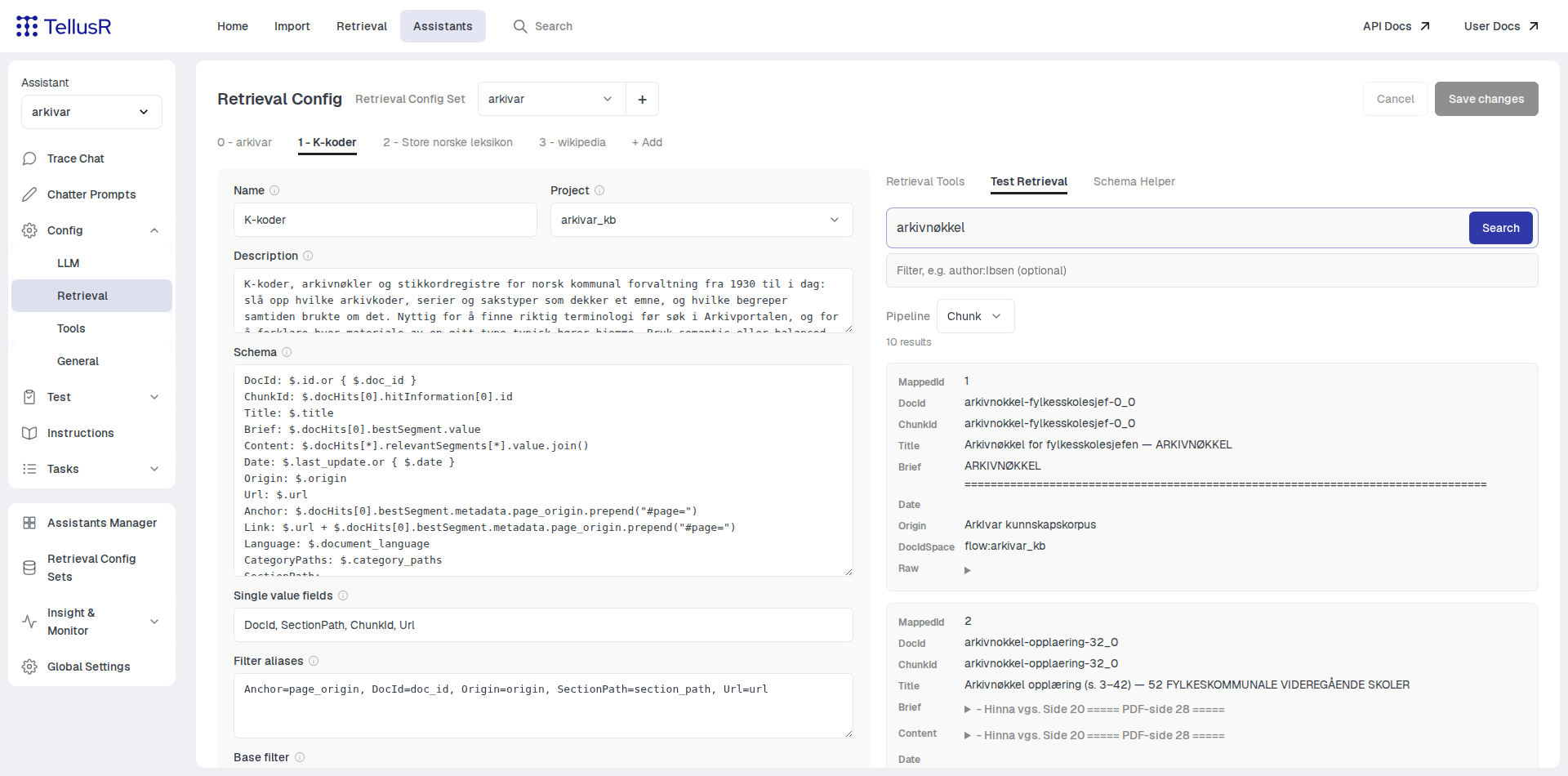
This is the fastest way to verify that the schema mapping, filters and pipeline settings return what you expect before testing the full assistant in Trace Chat.
For TellusR datasources there is also a Schema Helper sub-tab — a small assistant that helps
you build the Schema mapping from an example search result.