Tools
This page is for controlling what an assistant can do beyond answering from a prompt. A tool function is an operation the LLM may call while producing an answer — searching a datasource, fetching an instruction document, updating a checklist, or asking another assistant. The page has two halves: publishing this assistant as a tool for others, and managing the tools this assistant may use itself.
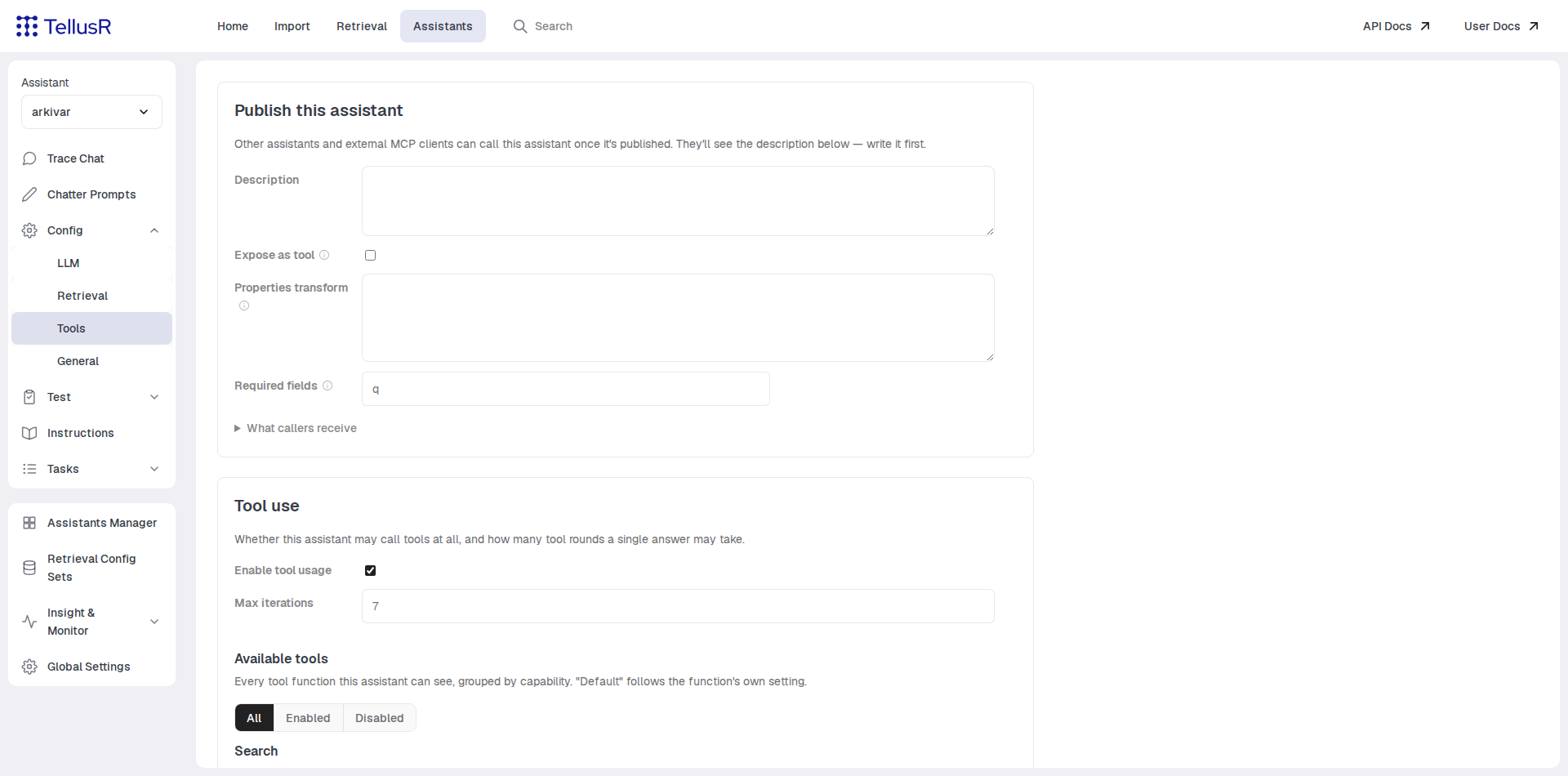
Publish this assistant
Assistants can call each other: a published assistant appears as a tool function named
chat_<name> that other assistants — and external MCP clients — can invoke.
| Field | Description |
|---|---|
Description | The text callers and their LLMs see. Publishing has no effect while this is blank — write it first. |
Expose as tool | Lets other assistants call this one. Each calling assistant must still enable the function on its own Tools page. |
Expose via mcp | Publishes the assistant on the MCP server for external MCP clients. |
Required fields | Comma-separated parameter names a caller must supply. Blank uses the default (normally q). |
The What callers receive expander at the bottom shows the exact tool description and
parameter schema offered to callers.
Tool use
The Tool use section holds the master switches: Enable tool usage turns tool calling on or
off for the assistant as a whole, and Max iterations bounds how many rounds of tool calls a
single answer may take.
Available tools
Every tool function the assistant can see is listed here, grouped by capability — Search,
External sources, Tasks, Memory, Assistant, Utility and so on. The All / Enabled /
Disabled buttons filter the list by resolved state.
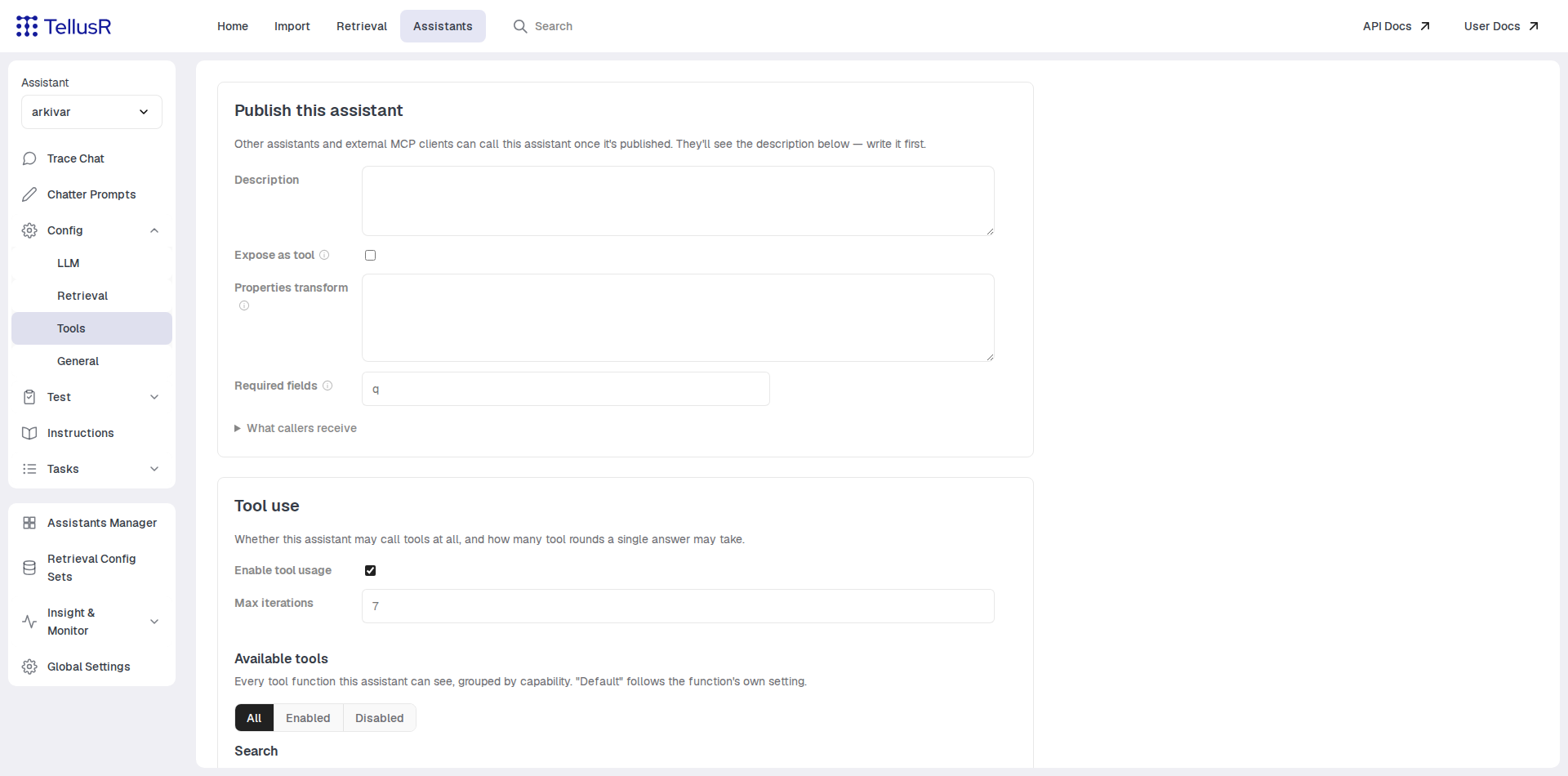
Each row shows the function’s name, the description the LLM receives, and an enable dropdown:
| Choice | Description |
|---|---|
Default (Enabled) / Default (Disabled) | Inherit the function’s own default. The parenthesis shows what inheriting currently means. |
Enabled | Always on for this assistant. |
Disabled | Always off for this assistant. |
Expand Details on a row to see the full description and the parameters the LLM receives,
and to set a description override — a replacement description that applies to this
assistant only. Use {description} in the override to insert the tool’s underlying
description. Leave it blank to inherit.
Everything on this page saves automatically when a field changes — a small ✓ next to the field confirms it. The settings belong to the individual assistant; the shared defaults for search functions are managed per config set on the Retrieval page.