Trace Chat
This page is for testing an assistant and inspecting exactly how it produced its answers. A trace is the step-by-step record of one answer: every pipeline step, retrieval call, LLM request and tool call, with inputs, outputs and timings. Trace Chat is a full chat client with the trace exposed, so you can both converse with the assistant and see what it did.
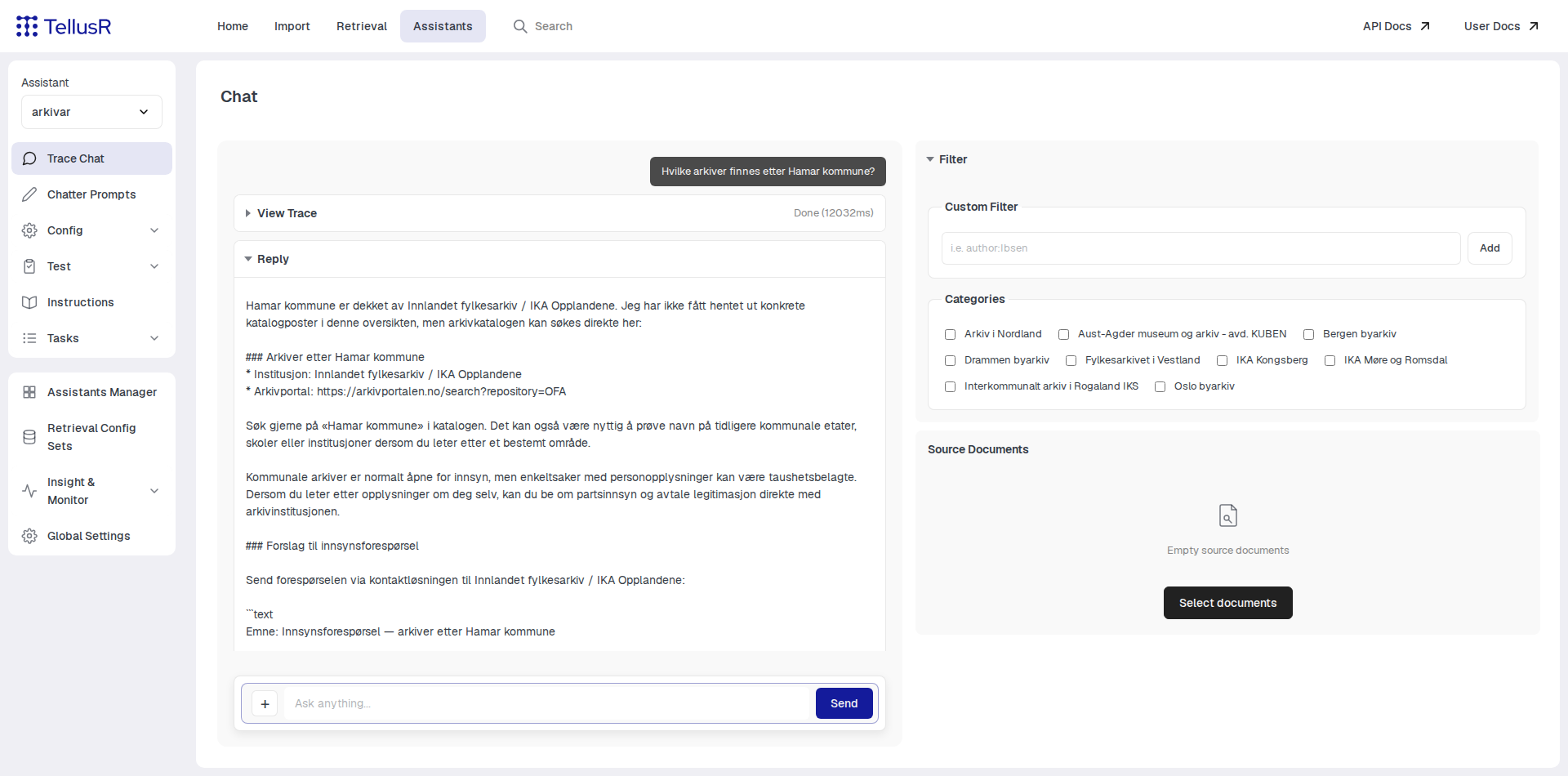
Type a question in the input field at the bottom and press . The answer streams in as it is generated. Each question becomes a turn with the following collapsible cards:
| Card | Description |
|---|---|
View Trace | The execution trace. While the answer is being produced, the summary line shows the active step; when finished, the total duration. Collapsed by default. |
Reply | The assistant’s answer, streamed token by token. |
Sources (N) | The documents the answer cites. Each source is numbered to match the [1]-style references in the reply, and links to the document when a link field is available. |
Usage Stats | Models used, token counts (input / output / total), cost and LLM time for the turn. |
Previous turns stay on the page as read-only history, so you can compare answers within a conversation. Use the menu next to the input field and choose to start over with a clean conversation — the assistant then answers without memory of earlier turns.
Reading the trace
Open View Trace to see the pipeline as a tree of collapsible steps, each with its duration.
A step expands into its content — for a tool call, for instance, a Request and a Response
pane. When a step spawns a sub-assistant, the sub-assistant’s own trace is nested inside the
step that caused it.
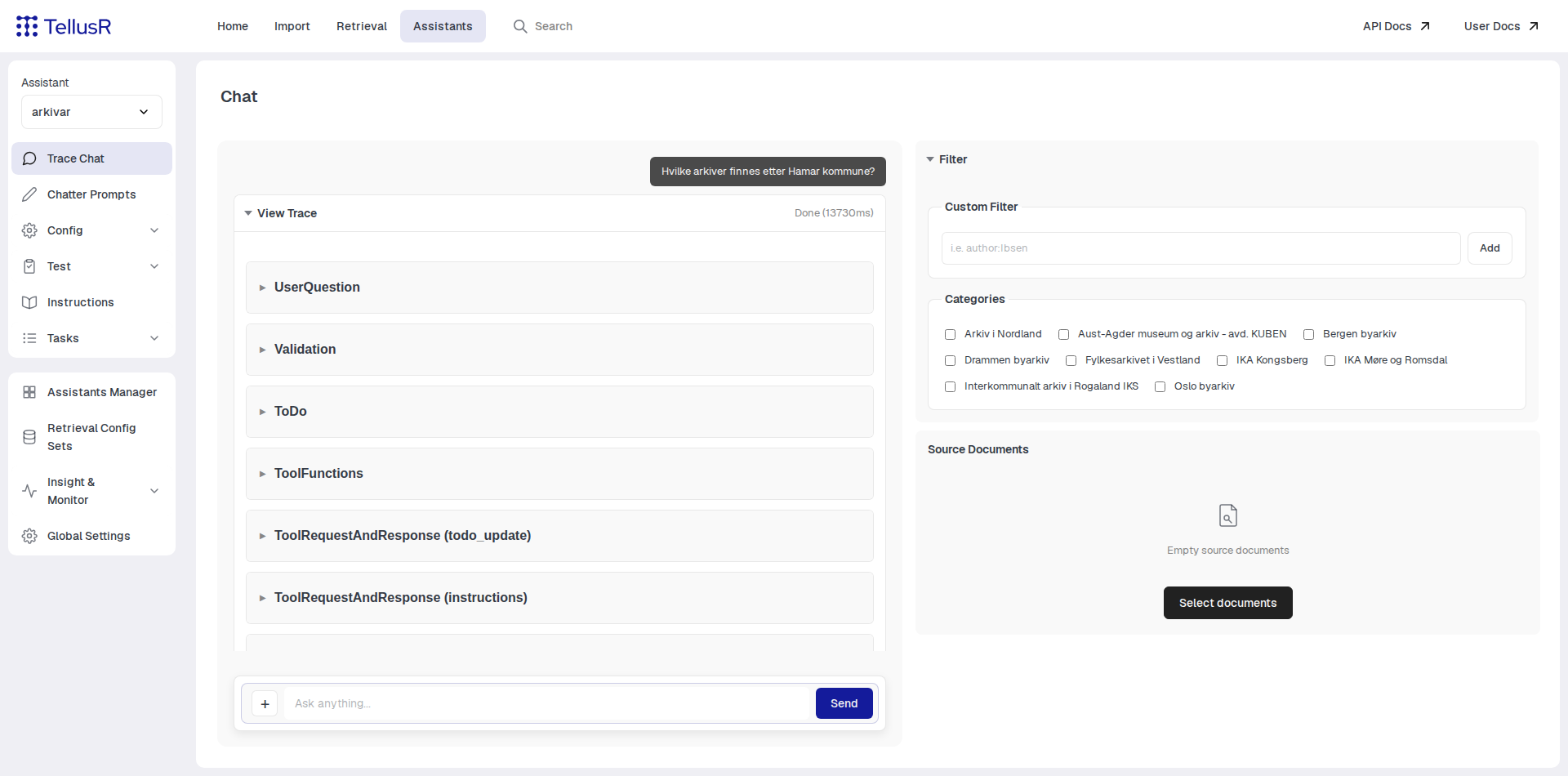
Every step has a button that copies its content to the clipboard — convenient when you
want to inspect a full prompt or a retrieval response elsewhere. If the model emits reasoning
tokens, they appear in a Thinking box below the tree.
If a run fails, the View Trace panel opens automatically with the error in its summary line,
so you can see which step was running when it failed. Output produced before the failure
remains visible.
Filters and categories
The Filter card in the right column restricts what the assistant retrieves:
- Custom Filter: add field filters such as
author:Shakespeare. Each filter becomes a chip that can be removed again. - Categories: if the assistant has category groups configured, they appear here as checkboxes or radio buttons. Selections are applied to the next question.
What Are You Chatting Against?
By default, your chat draws from the content specified in the selected assistants retrieval configuration. For full content overview see the Retrieval Config under Assistants > Config > Retrieval. This means that when you ask a question, the assistant automatically searches across your connected projects, external sources and other provided context, using its specific settings and instructions to filter, prioritize, and find the most relevant context for your answer.
The Source Documents Section
Sometimes, you do not want the assistant to guess the most likely context from your entire knowledge base. Instead, you want to drill down and chat with a specific file or a small set of files. That is where the Source Documents section comes in. It allows you to force the assistant to look only at the exact documents you specify.
How to Chat with Specific Documents:
- Locate the Source Documents section on the right-hand side of the interface.
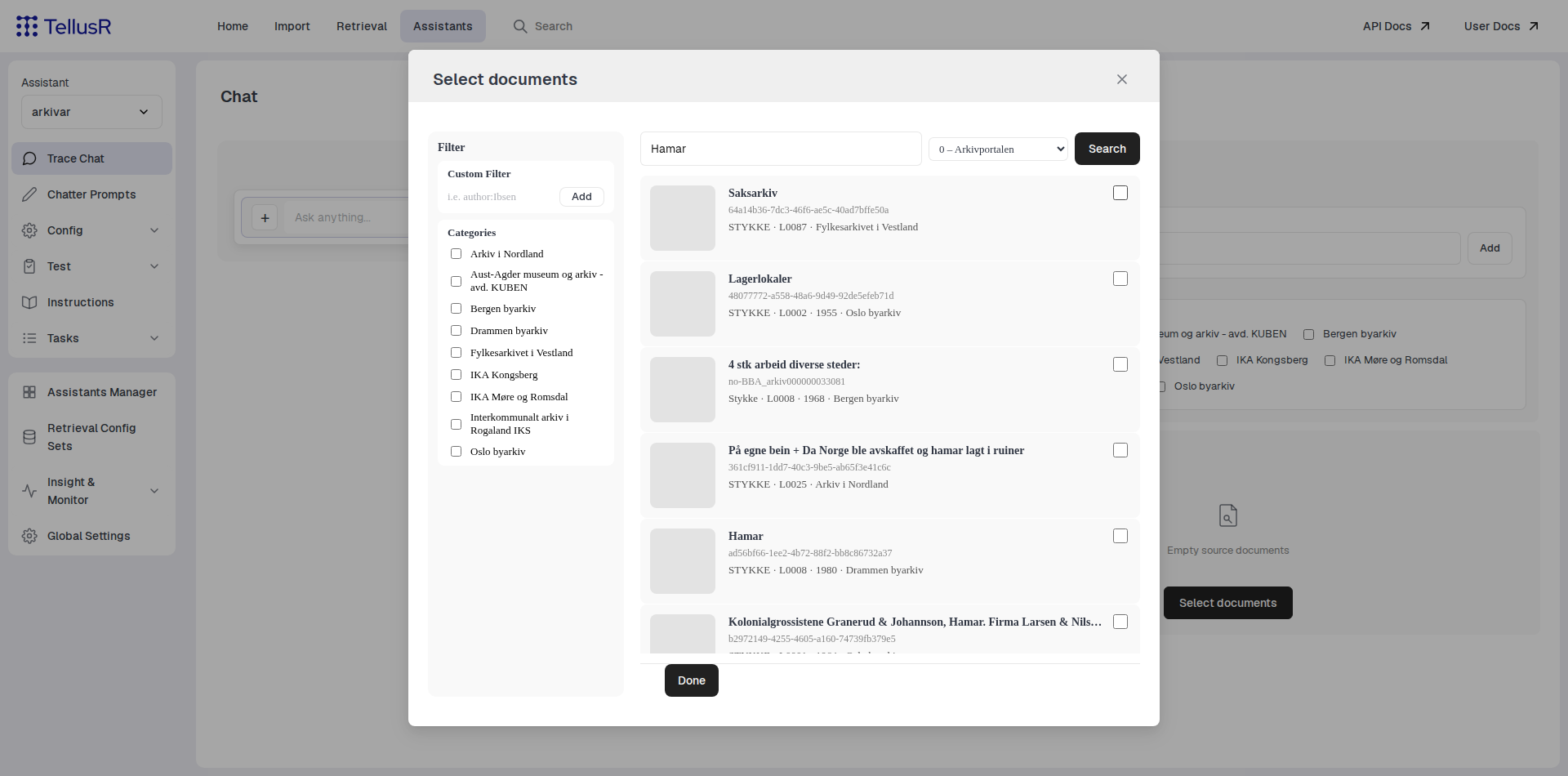
- Click the Select documents button, which will open a search window.
- Search for the specific documents you want to chat with. If configured, you can optionally use the filters and categories on the left side of this window to narrow down the results.
- Tick the checkboxes next to the documents you want to use and click Done.
- The chosen documents will appear as chips on your page.
- For all subsequent questions, the assistant will bypass the broader search and answer using only those selected documents.
Feedback
After each completed answer, a feedback bar with thumbs up / thumbs down appears. Both open a dialog where you can describe why the answer was good or bad. Feedback is stored with the conversation and can be reviewed later, making Trace Chat useful for structured quality testing as well as debugging.