Quick start
This page is for launching a new project and a basic chat assistant in one step. For advanced management, use Retrieval to configure projects or Assistants to fine-tune the chat behavior.
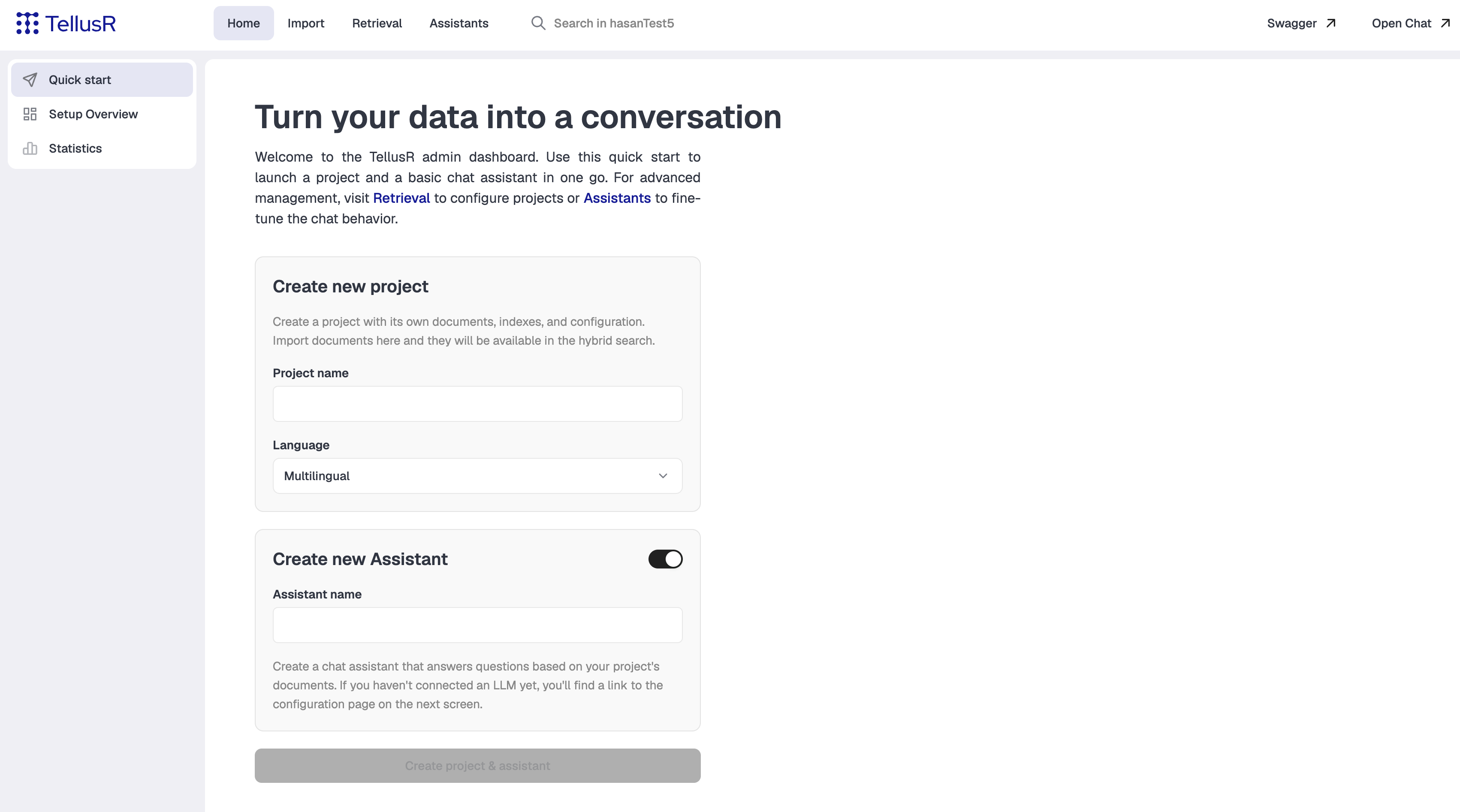
Create new project
| Setting | Description |
|---|---|
| Project name | Give the project a short and descriptive name (e.g., wikipedia_no if you plan to import the Norwegian Wikipedia).The name must be unique and can only contain letters, digits, and underscores (maximum 40 characters). The name default is reserved. |
| Language | Multilingual, English or Norwegian. Defaults to Multilingual.Based on your selection, TellusR applies a specifically trained Huggingface language model to optimize search and document understanding for that language. These models are bundled with your TellusR installation out-of-the-box. |
Create new Assistant
Enabled by default via the toggle in the card header. Turn it off to create only a project.
| Setting | Description |
|---|---|
| Assistant name | Give the assistant a clear, recognizable name (e.g., wiki_helper).The name cannot contain spaces and must be unique. This field is required as long as the “Create new Assistant” toggle is active. |
The Chat Assistant is created with search tools already bound to the new project,
enabling it to immediately answer questions against the dataset you upload. If no LLM is connected yet, the Configure LLM card on the next page (Setup Overview) links
straight to the configuration page.
Creating
The -button is disabled until the required fields above are filled in. On submit, the project is created first; if it succeeds and the assistant toggle is on, the chat assistant is created next. Either step can fail independently, so a project can end up created even if the assistant step then fails.
After creation, you are automatically redirected to the Setup Overview. This page provides quick links to your next steps, with your new project and assistant conveniently pre-selected for you.