Projects
This page is for managing projects. See also Projects and Documents for more details.
The Projects page gives you an overview of the projects available in your deployment, as well as estimated counts on how many documents there are and how many are indexed in the regular and semantic indexes.
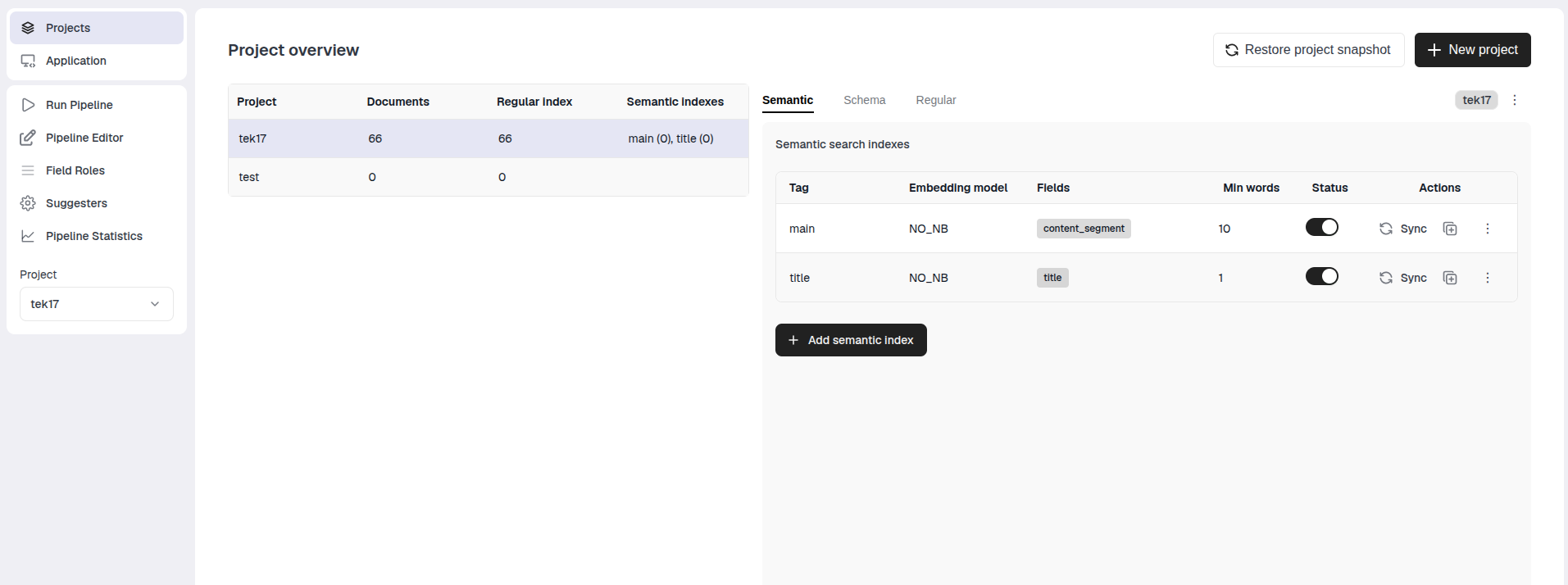
Adding & deleting projects
You can add a project by pressing the button in the upper left corner. It will take you to the following popup.
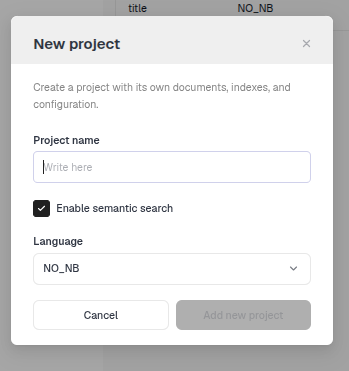
Give the project an appropriate name. It is advised to be short and descriptive. For example, wikipedia_no if you plan to import the Norwegian Wikipedia.
Optionally, enable semantic search from the beginning; this will create two semantic indexes, one for ingesting content of documents and one for ingesting titles.
This generally works well out of the box for most data.
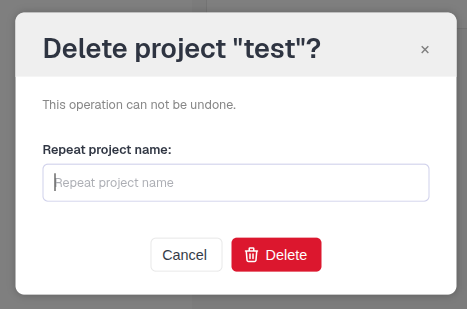
To delete a project, click the three-dot menu next to the project-name and select Delete. Deleting a project requires confirmation. This will delete all data associated with it (parsed documents, indexes, config) and cannot be undone.

Managing semantic indexes
Each project always comes with one regular index for keyword search.
In addition, you can add one or more semantic indexes. Go to the Semantic tab and press .
In addition, you can add one or more semantic indexes.
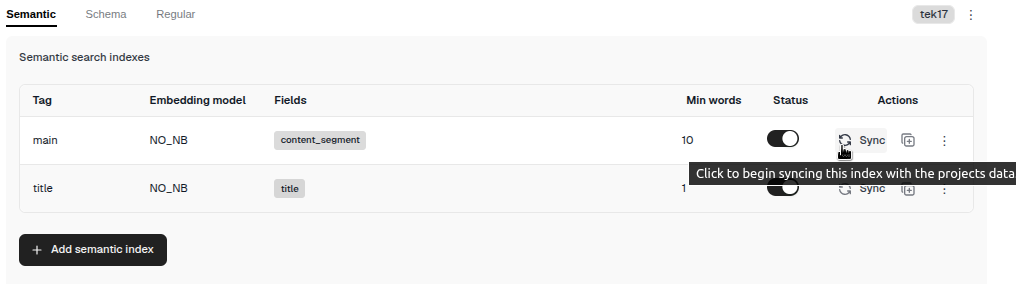
By default, a semantic index is enabled (See the Status column in the table below). In this state the semantic index will be used by all retrieval pipelines. You can optionally disable it; this just means it is not used in retrieval pipelines, but still receives updates. You can also sync its data while in this state. This allows you to prepare a new semantic index and switch with no downtime once it is ready.
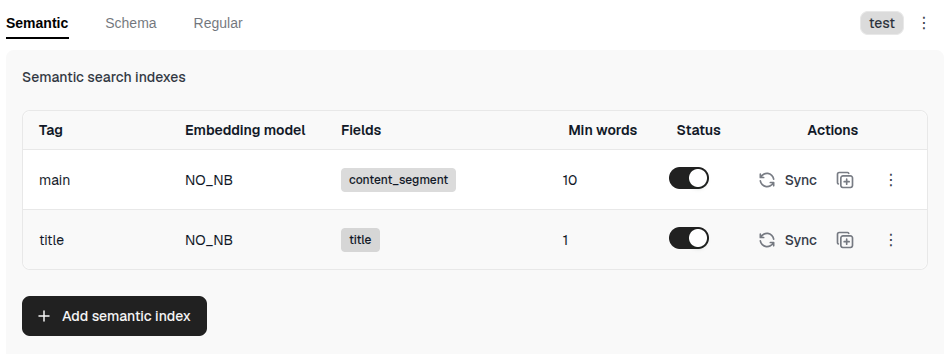
To add semantic indexes, go to the Semantic tab and press .
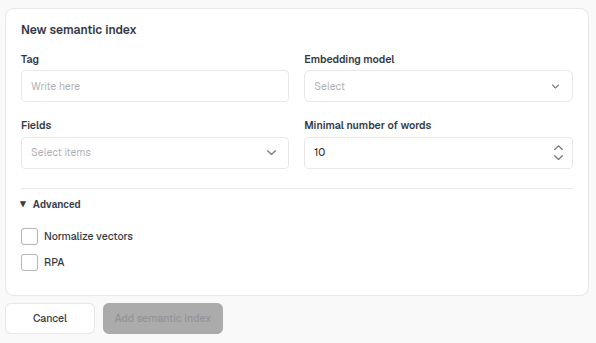
The semantic index is identified by a tag, so give it a unique tag-name. Select which document fields to use and select an embedding model. TellusR uses local inference, so no data leaves your environment at this point. But you can optionally select models from Hugging Face that will be downloaded and hosted locally (by selecting the Custom (Hugging Face) alternative in the Embedding model-dropdow).
| Setting | Description |
|---|---|
| Fields | This dropdown controls the fields used for embeddings. TellusR documents use the following convention to define chunks. Chunks are expected to be found under the field content_segmented which is a list of JSON objects where each JSON object contains the field content_segment; these JSON objects are the chunks in a TellusR document. Below is an example of what the schema for a TellusR document looks like.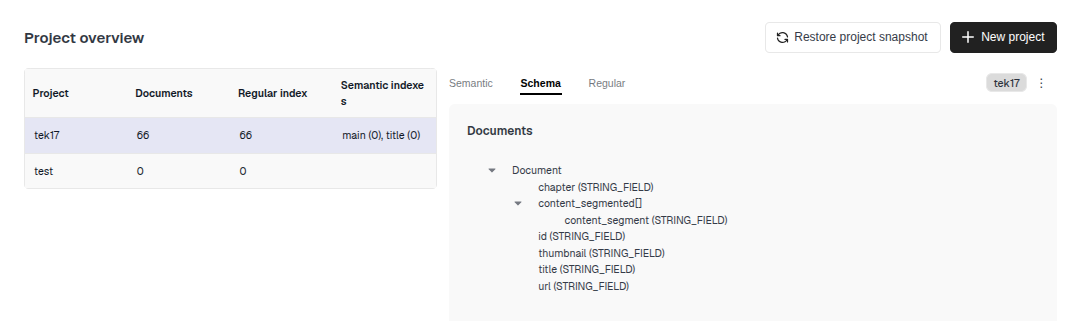 The fields that are available for the semantic index are the result of flattening the content_segmented field onto the TellusR document. In this example the field selection will become: chapter, content_segment, thumbnail, title, url (id is omitted). See also Projects and Documents for more details on flattening.You generally want to use fields that carry semantic information. That means the text itself, summaries or titles. Fields that consist of numbers are no good. There are filtering mechanisms in TellusR that silently drop indexing certain chunks if their data is too noisy in terms of numbers and special characters. For example, if a chunk consists only of “10 | 100 | 99” it will not be indexed semantically. |
| Minimal number of words | Vector search works in a way where vectors made only from singular (or few) words dominate the hit list. To fix this, we have an option to require a certain number of words. 10 is generally too much for titles, but good for longer texts such as content or summaries. For example, the title “World Climbing Series Bern 2026” would not be indexed when minWord is set to 10 because it only has 5 words. |
| Normalize vectors | Normalizes vectors from embeddings and uses dot product instead of cosine similarity for similarity. When enabled, you can expect a small speedup of 10-25% with no loss of quality. |
| RPA | Uses a random projection matrix to reduce the dimensionality of vectors. When enabled, you can expect a speedup of 10-25% at the cost of a slight loss in quality. This is useful for large datasets. |
Use the button to sync missing documents into a semantic index.
Normally, documents are automatically added to all available indexes when you insert them into a project. However, if you create a new semantic index in a project that already contains documents, it will not automatically include the existing data. In this specific case, use the Sync button to update the new semantic index with the existing documents.
Managing the regular index
Each project comes with a regular index which is always enabled. The regular index is optimized for the language you chose at the creation time of the project. You can reindex this index (from scratch), which is useful in the following scenarios:
- You have added synonyms. Then these synonyms will be built into the new index.
- The data in the project no longer fits the language chosen at project creation time.
- You made hand edits to the solr collection that implements this index. This is for advanced users. We refer to the official solr documentation.
To edit synonyms and/or reindex the regular search index, go to the Regular tab and press .
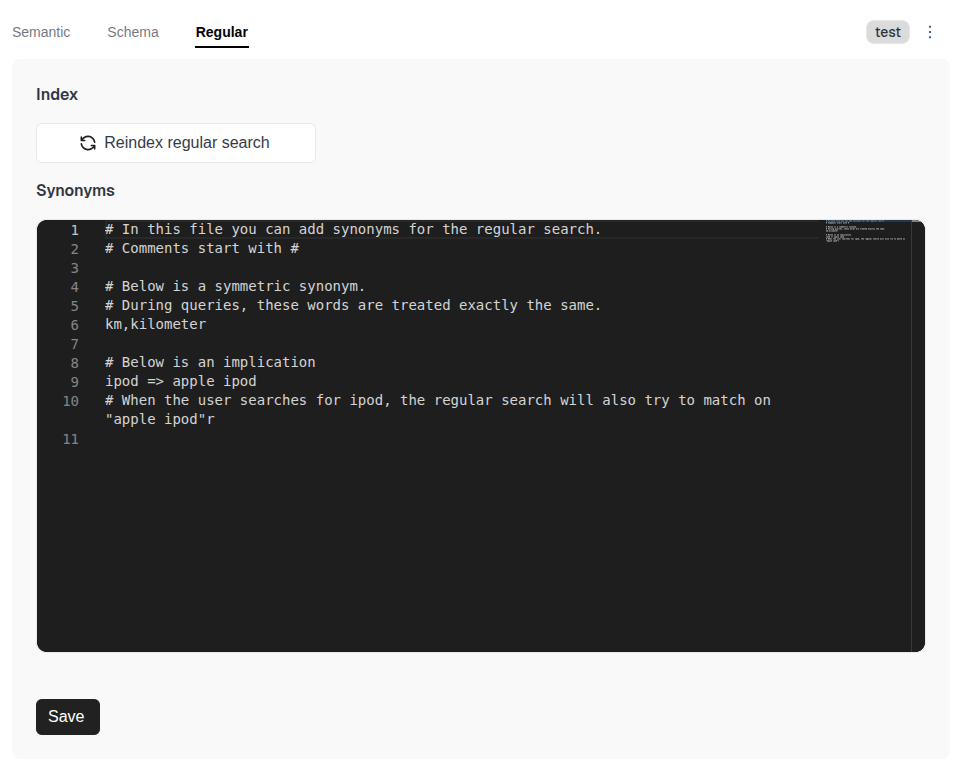
You will be taken to a popup where you can change the language and reindex the regular search index from scratch:
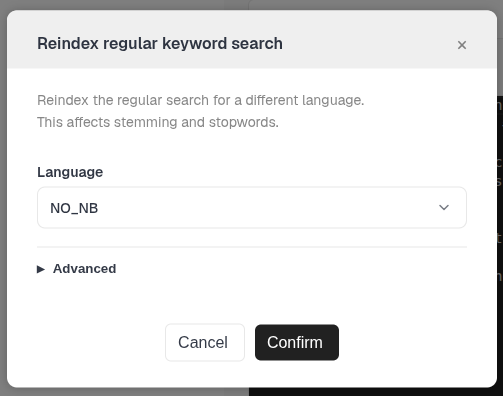
Click to start reindexing. During this process, the regular index will only be partially available; searches will only return documents that have already been processed.